
July 01, 2026
The Salesforce Summer '26: The Update That Quietly Fixes Your Biggest CRM Headaches article describes how the new Date operator helps businesses. This article shows how technically it can be done in your Salesforce org.
Salesforce introduces new Date operators in Decision logic in Flows in Summer '26 Release.
Create date-based branching with date operators in Decision elements. Select operators such as Is Today, Is Anniversary of Today, and Last Number of Days when a condition uses a date data type. This update helps you model recency and milestone logic without formula workarounds.
Where: This change applies to Lightning Experience and Salesforce Classic, for all flow types. It’s available in Essentials, Pro Suite, Professional, Enterprise, Performance, Unlimited, and Developer editions.
Why: Decision element conditions previously offered limited date comparison options. The expanded operators improve consistency with other comparisons in Flow Builder and support clearer logic for time-based outcomes.
How: In a Decision element, add or edit a condition that uses a date data type, and select a date operator. Configure the resource, operator, and comparison details to match your outcome paths.
Unfortunately it is just for Decision Action in a Flow. Meaning that these new operators are not available for Filter Conditions for records that will be processed by a Flow. Here are two examples:
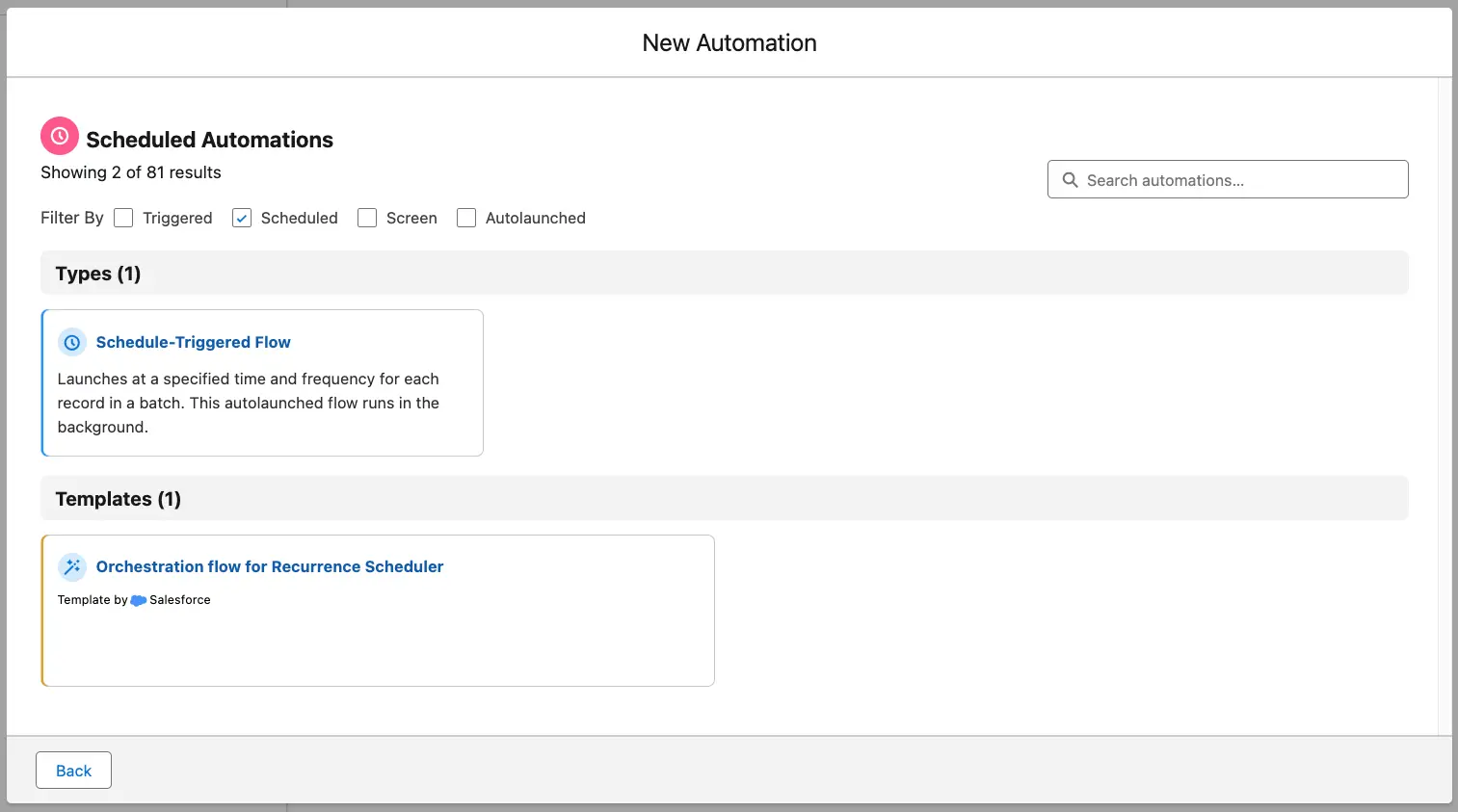
An Opportunity has a Renewal Date. You want to start the process 30 days prior current contract/subscription/what have you ends. Here are the steps:
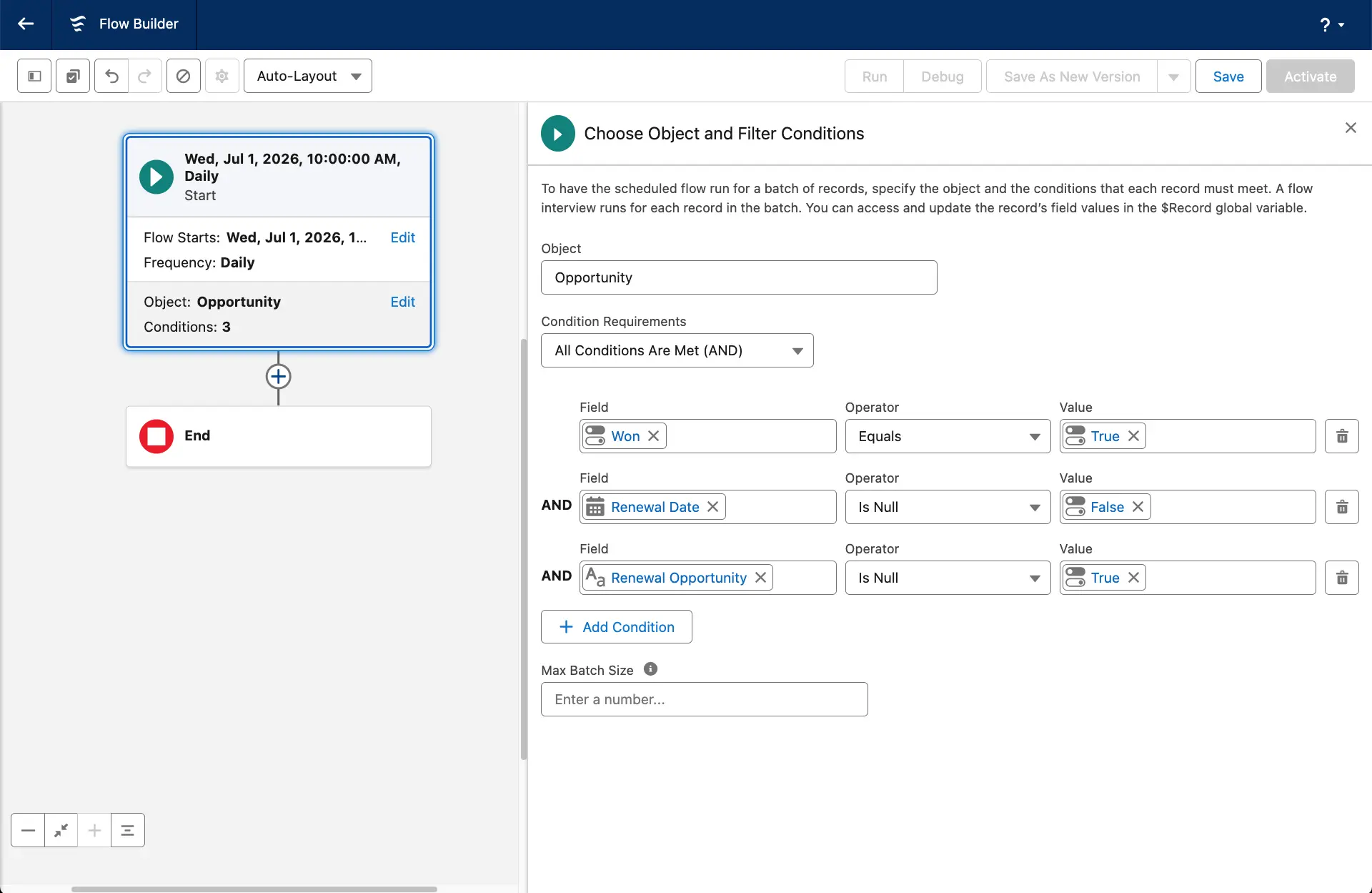
The initial filter condition will be super simple. This is the place where it would be nice to have these new operators. An Opportunity is Won, the Renewal Date is not null, and lookup to Renewal Opportunity is blank. Each morning the Flow will be executed and Opportunities that fall under these conditions will be poured inside the Flow.
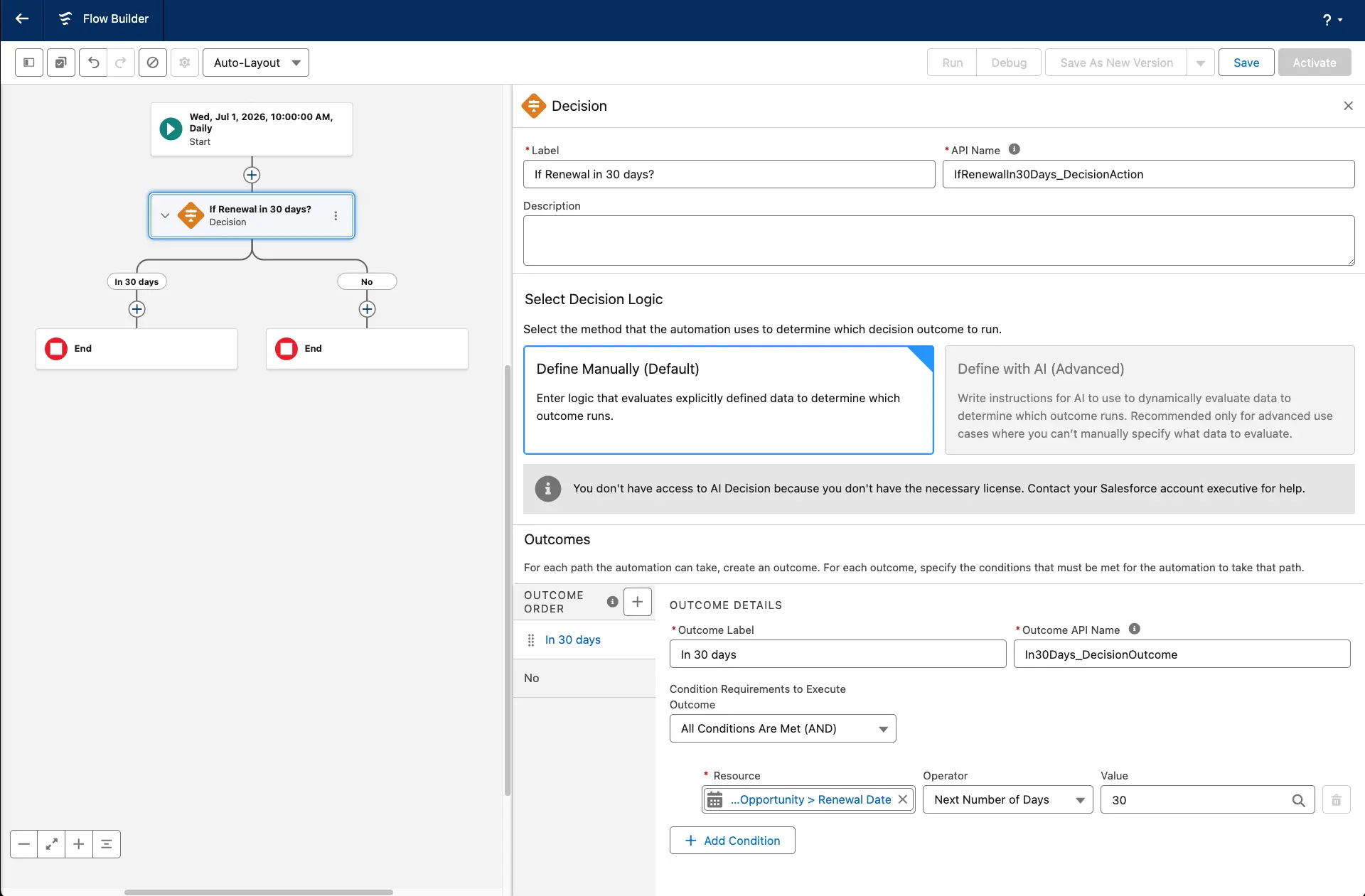
For our example we select Renewal Date field and for operator - Next Number of Days, set 30 for the value. This way we say "If Renewal Date is between today and today+30 days" - hit this record.
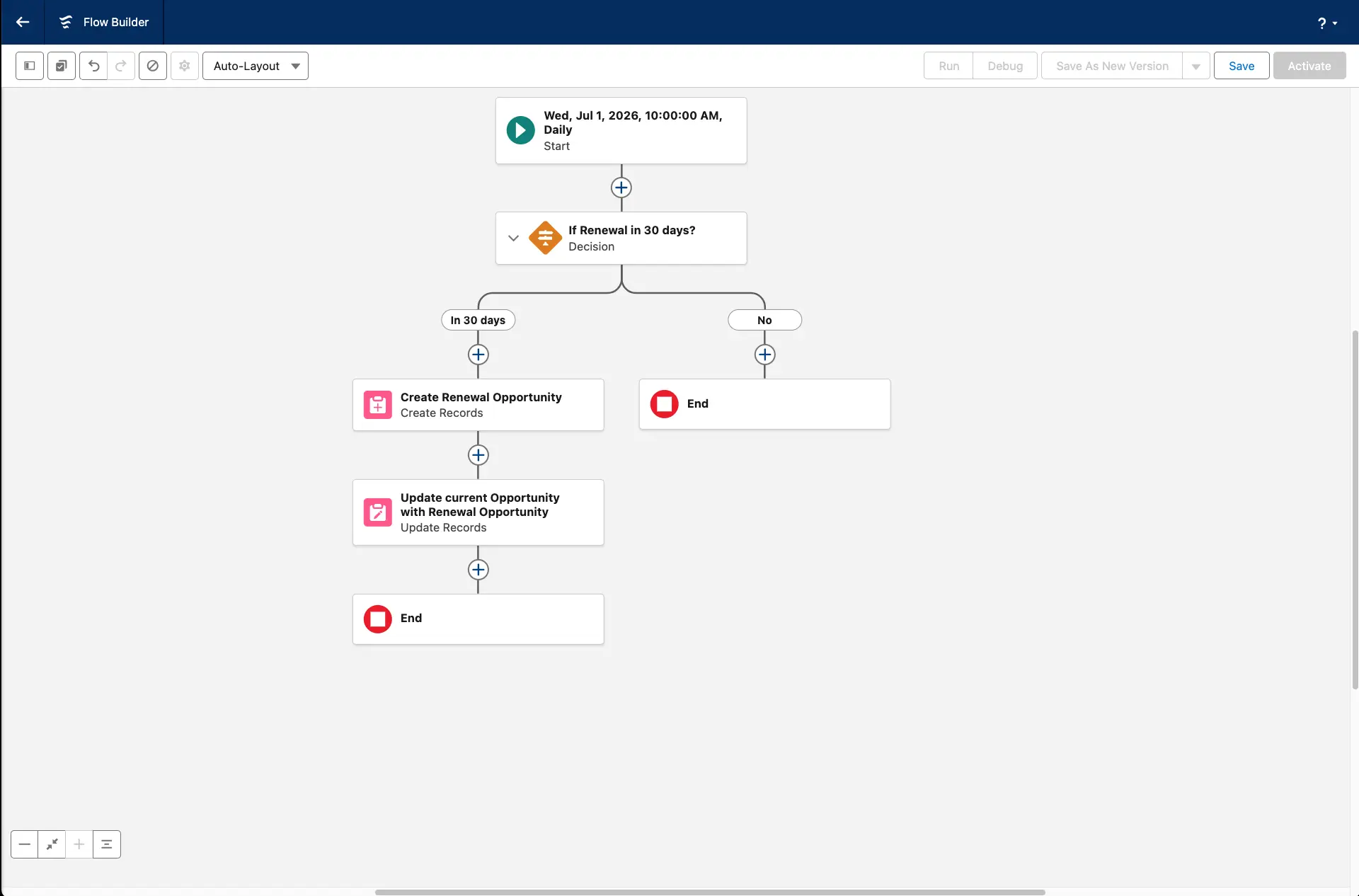
Usually a Renewal Record Type is used for Renewal Opportunity. You then update initial Opportunity with the lookup field set to a newly created Renewal Opportunity. You set an Owner of the Renewal Opportunity. They will be notified about "new" Opportunity. Once they are notified they will start the Renewal process.
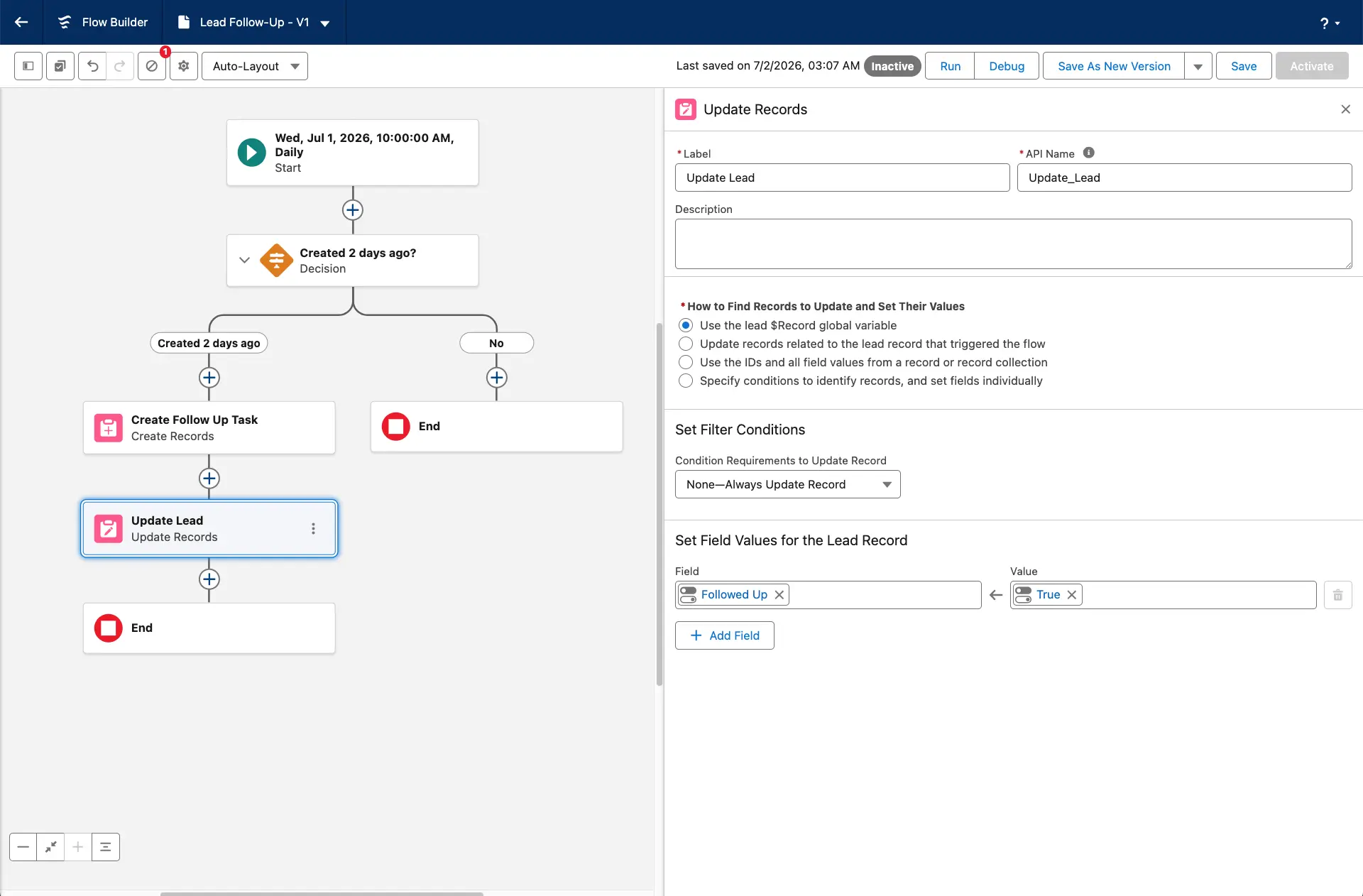
Simple process - a Lead is created, if it is good it is contacted right away. If for some reason it is not or there is no answer - try one more time in 2 days. Here are the steps:
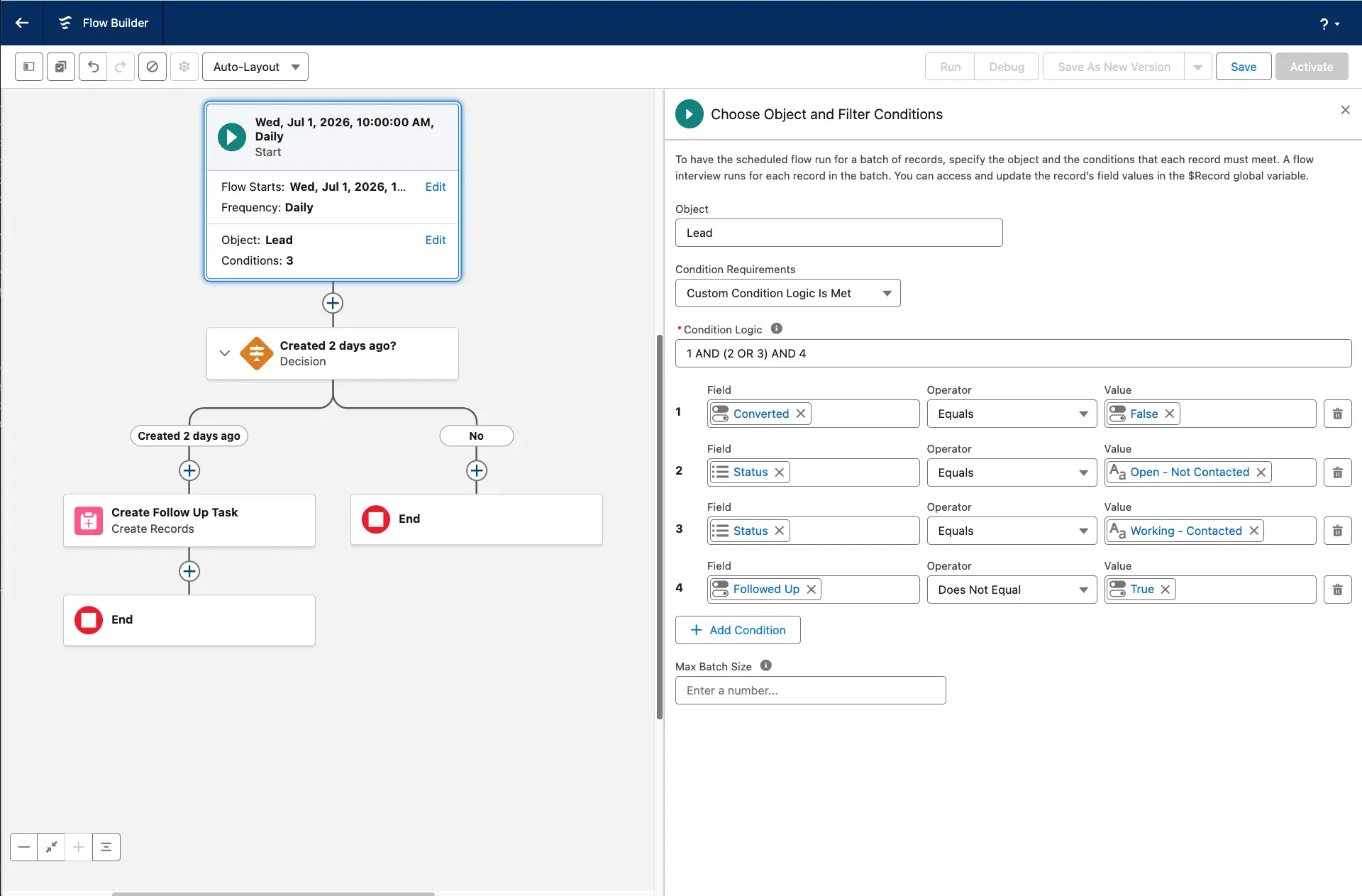
The initial filter condition will be super simple. A Lead is not converted, the Status is either Open or Contactd (but not Converted), and it has not yet been Follwed-Up. Each morning the Flow will be executed and Leads that fall under these conditions will be poured inside the Flow.
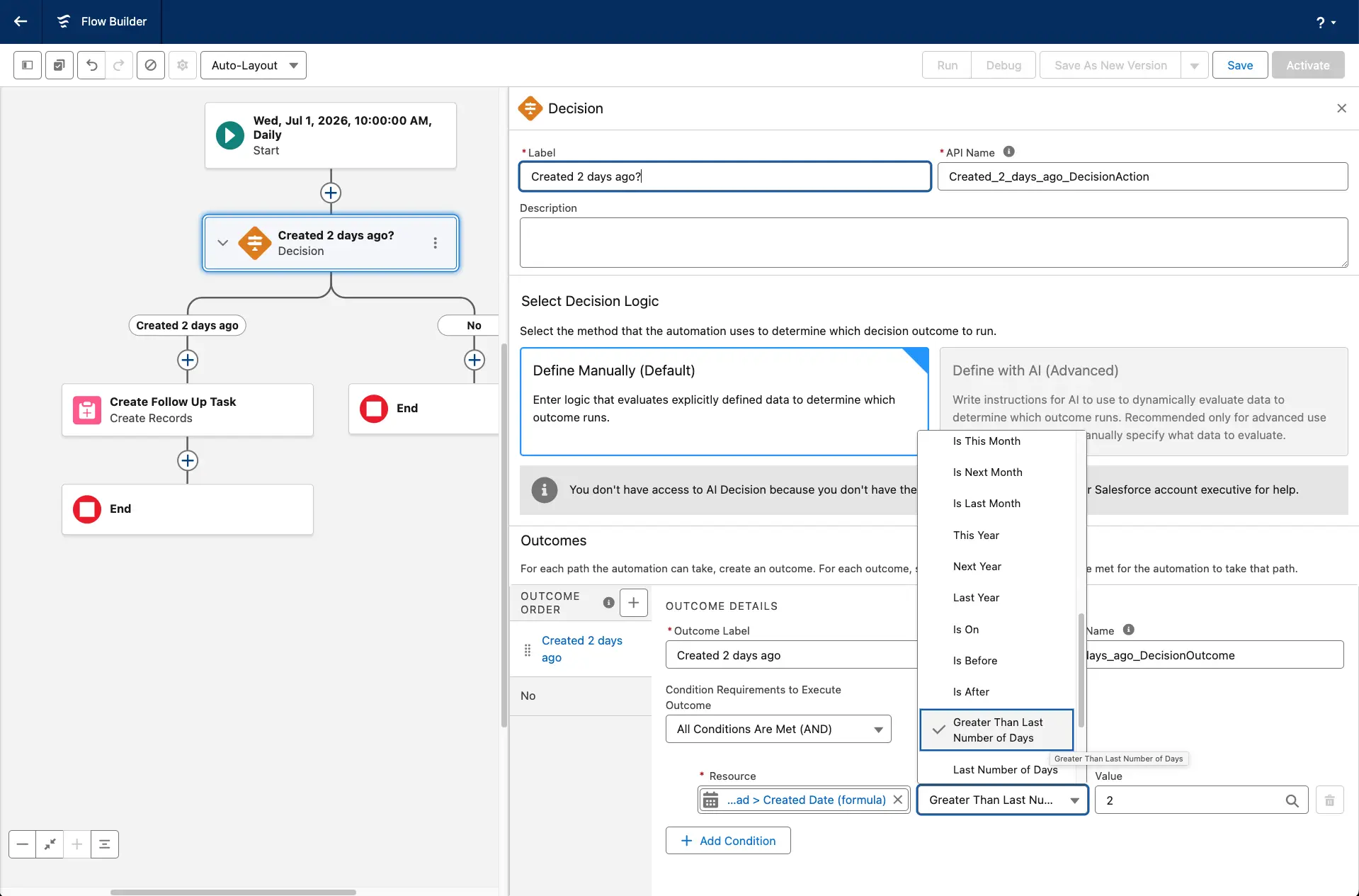
For our Lead example we can't simply use standard CreatedDate field - because it is DateTime type, not the Date. What do we do? Create a formula to have a simple Date type field. Use the formula field for the condition. We want a Lead record hat was created in Greater than Last Number of Days - it has been more than 2 days since the value in the field.
Contact Andrew Muzychuk to make your Salesforce go.
Andrew won't let you become Pakled - Book a call.